Convert

Nothing slips

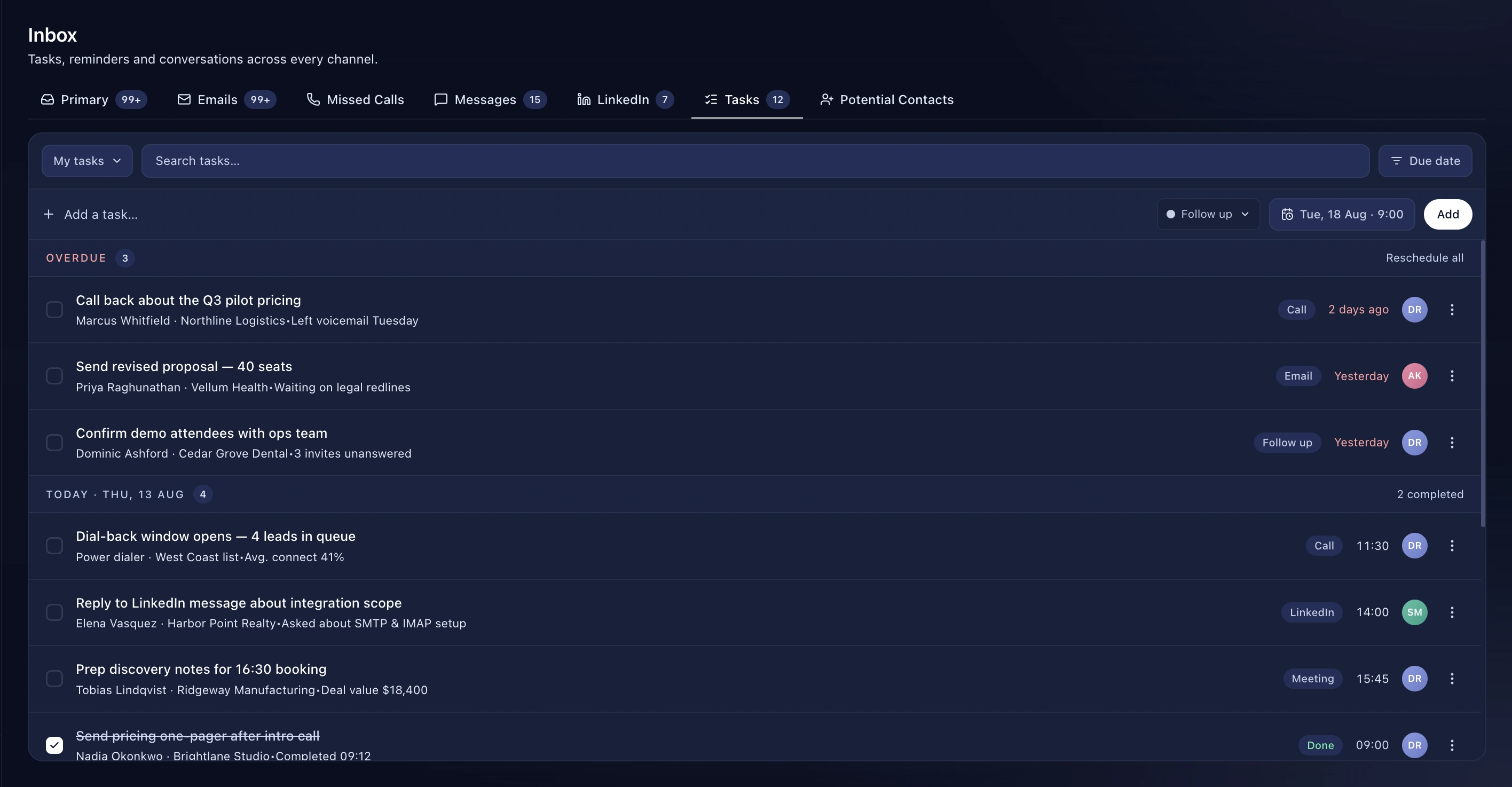
Tasks with due dates, assignees and categories — and a banner that won't let an overdue follow-up go quiet.

Proof Points

  • Per-lead and standalone tasks
  • Due dates, assignees, colour-coded categories
  • Overdue banner with quick actions and stepping
  • Audible reminder
  • Assignee filter: mine, everyone, or a person
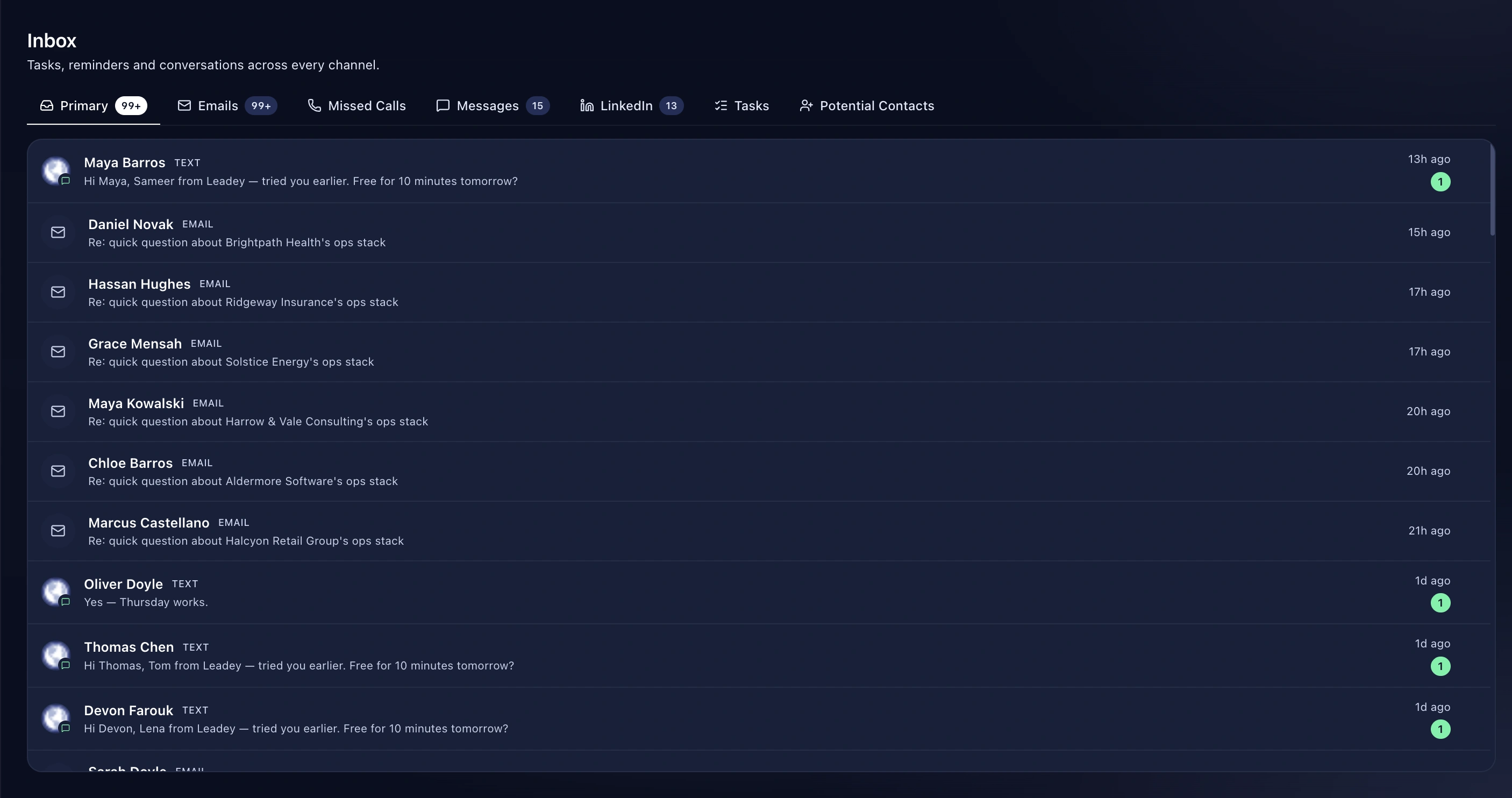
  • A tab in the unified inbox

How It Works

  1. Create a task from a lead or the inbox
  2. Set due date, assignee and category
  3. It surfaces on the dashboard and in the inbox
  4. Tick it off

Benefits

Overdue is visible, not buried

An overdue task shows in a banner across the top of the app, with the actions to deal with it and arrows to step to the next one.

Categorised your way

Follow up, call back, email, reminder — or whatever your team actually uses. Colour-coded and editable.

Assign across the team

With the right permission, assign tasks to teammates and filter by whose they are.

Frequently asked questions

Can workflows create tasks?

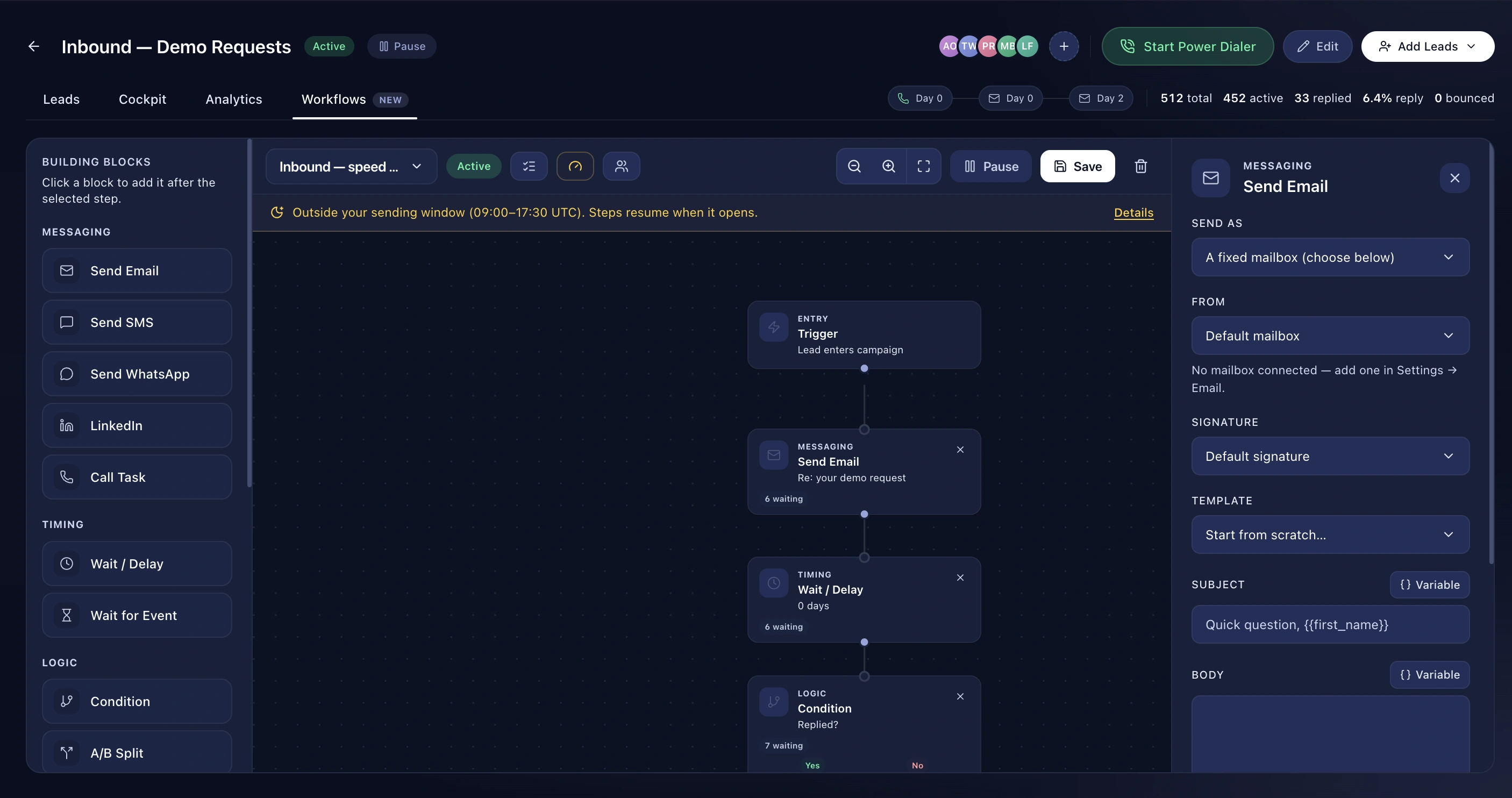
Yes — a call task is a workflow node.

Can I see the team's tasks?

With the right permission, yes.

Do overdue tasks notify me?

Yes, with a banner and a chime.

Explore